MAXQDA supports importing and exporting project data using the universal REFI-QDA Project exchange format (.qdpx). This format allows you to transfer projects between MAXQDA and other qualitative data analysis (QDA) software programs, including NVivo and Atlas.ti.
You can learn more about this features in the REFI-QDA Project chapter of our online manual.
A) Check Your QDA Manual to Know the Specifications
Interoperability between QDA software programs is limited by the internal structure and features of each application. As a result, some information may not be transferred successfully during migration.
Please review the specifications and export requirements for your source software:
Additionally, you can find more information about the terminology used in the different QDAs via this link: Project | REFI-QDA
B) How to Migrate Your Project
Follow these steps to import your project into MAXQDA:
1. Save or export your project as a REFI-QDA Project (.qdpx) file from your source software.
2. Open MAXQDA.
3. In the Welcome Screen, click Open.
4. Select the .qdpx file you exported.
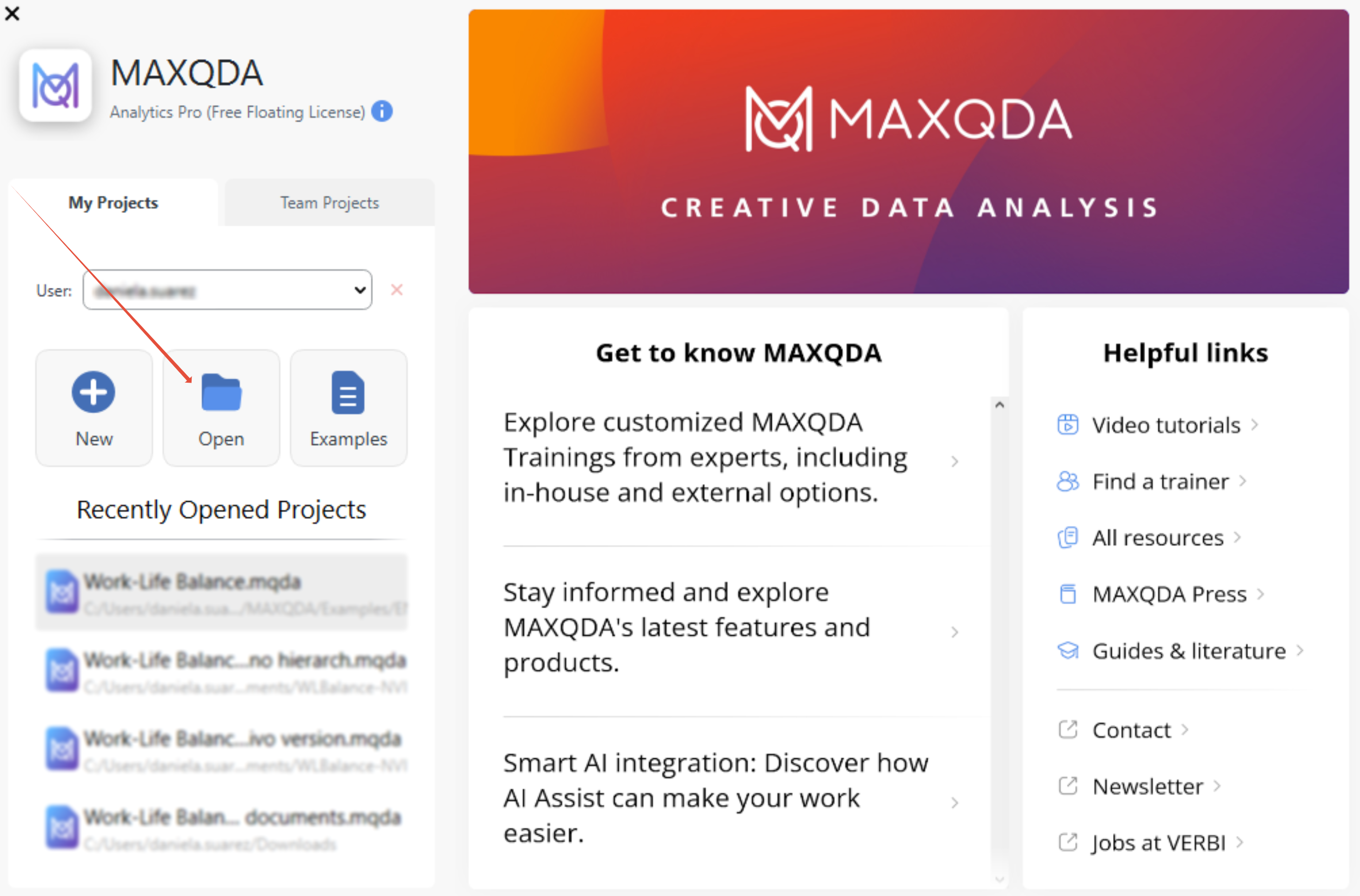
Once the import is complete, you can continue working with your project in MAXQDA.
C) What to Do If the Project doesn't Come Through
If the project doesn't open properly export a .qdpx file and import it again in both the source and destination programs. This will allow you to verify that there are no internal errors in either program.
To ensure the best possible outcome, we recommend simplifying the structure of the original project before exporting it to the REFI-QDA format.
You can make a copy of your project and try the following recommendations :
1. Simplify the code system in the source QDA
- Avoid more than two levels of nesting (that is, parent code and subcode).
- Remove empty codes.
- Remove special character and emojis from the labels.
2. Simplify the documents classification in the source QDA
- Remove all the folders, so that all your documents are in a single list
3. Save the transcripts as text documents. You will be able to relink the multimedia files in MAXQDA
If you are not able to migrate your project after following the previous steps, please please contact our Customer Support Team.
Was this article helpful?
That’s Great!
Thank you for your feedback
Sorry! We couldn't be helpful
Thank you for your feedback
Feedback sent
We appreciate your effort and will try to fix the article