TeamCloud Versions:
Seperate versions: MAXQDA 2022, MAXQDA 24
Only users who are using the same version can work together
Version independent: MAXQDA 26 and MAXQDA 27
Users can collaborate when utilizing MAXQDA 26 or MAXQDA 27.
To make a TeamCloud project, originally worked on in MAXQDA 24, available in MAXQDA version 26 or 27, please follow these steps:
MAXQDA 24
Team Member:
- All team members should upload their latest work.
Team Lead:
- Open the TeamCloud project in MAXQDA 24 and import all outstanding files from team members.
- Save the TeamCloud project as a local project by selecting Export as Local Project from the TeamCloud ribbon tab. This will create a MAXQDA 24 project file with the .mx24 extension.
- Close MAXQDA 24.

MAXQDA 27
Team Lead:
- Install and launch MAXQDA 27: MAXQDA Updates | Profit from new features and improvements .
- In the start window, click "Open" and select the previously exported .mx24 file. MAXQDA will convert the file into a MAXQDA project and create a project file with the .mqda extension.
- Navigate to the TeamCloud ribbon tab and select Upload Project for Team (Start Cycle 1). This will create a new TeamCloud project.

- You can then invite your team members again.
Team Member:
- Team members accept the invitation to the new project.
- Team members can now install and launch MAXQDA 27.
- After logging into their MAXQDA account, the new TeamCloud project will be available.
MAXQDA 24 can now be uninstalled.
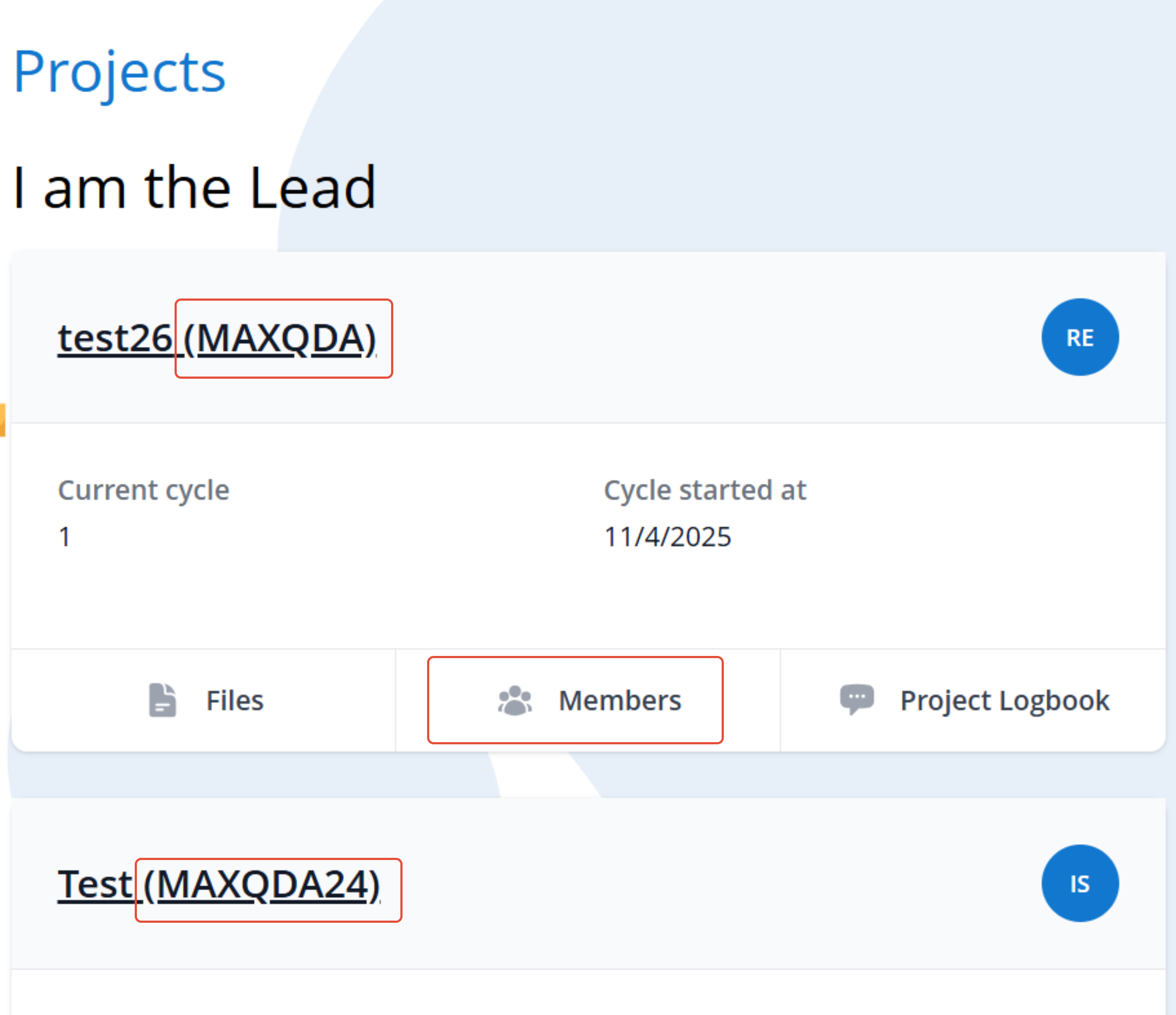
Please note. All team members must use MAXQDA 27 to be able to open the new project. It will not work if some team members are using MAXQDA 24 and others MAXQDA 27. However, this problem does not arise between MAXQDA 26 and MAXQDA 27. You can also tell this from the start screen: on your MAXQDA 27 start screen, you will see both MAXQDA 27 and MAXQDA 26 TeamCloud projects. This also applies to the list of TeamCloud projects, which you can access via the menu item TeamCloud > Open Team Project.
Users can collaborate independently if they are utilizing MAXQDA 26 or MAXQDA 27.
Was this article helpful?
That’s Great!
Thank you for your feedback
Sorry! We couldn't be helpful
Thank you for your feedback
Feedback sent
We appreciate your effort and will try to fix the article