Some issues can only be investigated and resolved by the MAXQDA support team with your project file.
Since the MAXQDA team does not have access to your project data, you would need to provide us with your project file upon request.
Exporting the project file for support from version 26.1 onwards
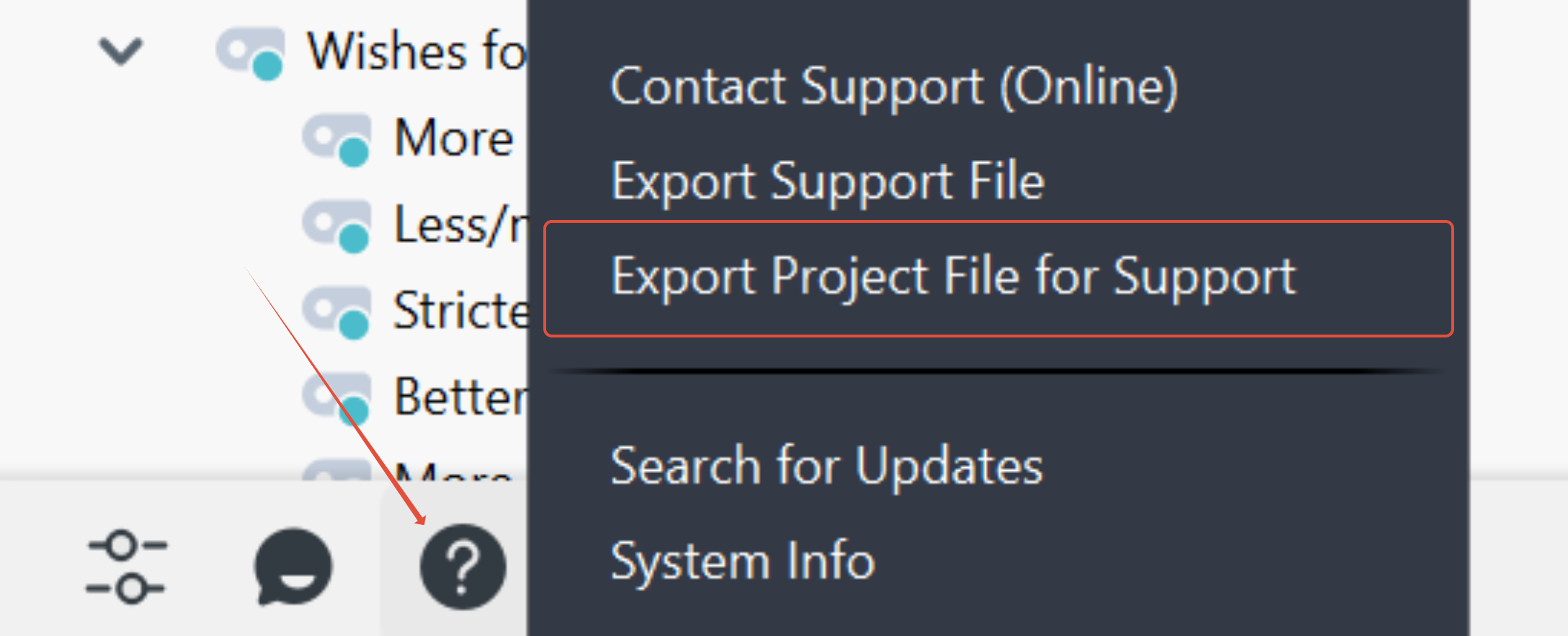
If you are able to open your MAXQDA project, you can select the menu item "Export Project for Support" via the question mark icon at the bottom left. You also have the option to export external files that are relevant to resolving the issue.
Finding the project file
Here is how to find out where your project file is stored.
On the start screen, right-click and select "Open File Location."

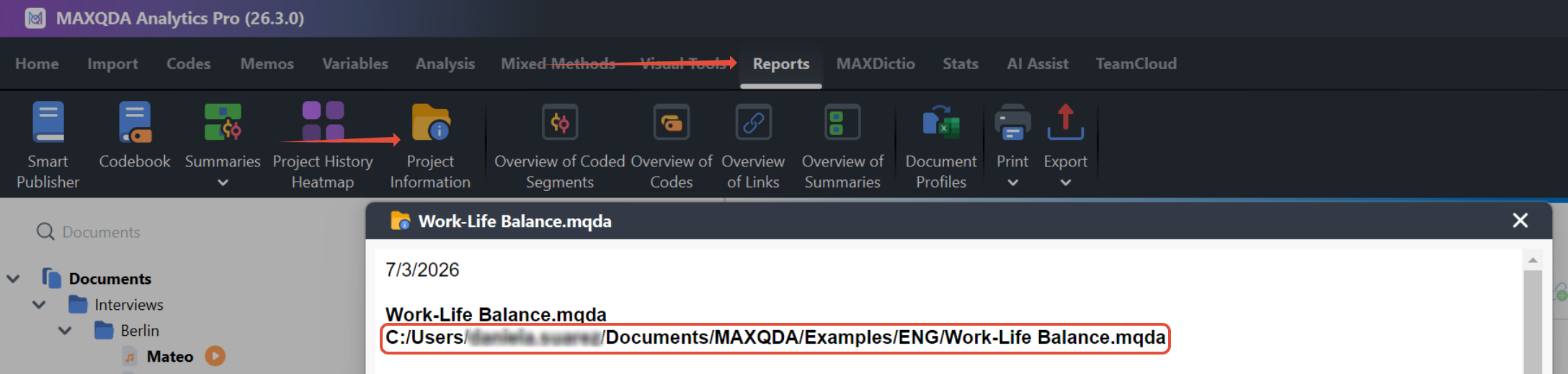
Within the project, you can find the storage location of your project file under Reports > Project Information.
Uploading the project file
The support team will provide you with a personal upload link for your project file. Through this link you can securely send us the project file.
We store this project file solely for the purpose of resolving the issue and will delete your data immediately after closing your request.
Was this article helpful?
That’s Great!
Thank you for your feedback
Sorry! We couldn't be helpful
Thank you for your feedback
Feedback sent
We appreciate your effort and will try to fix the article