MAXQDA supports the following formats as standard:
| Audio | Windows: MP3, WAV, WMA, AAC, M4A Mac: MP3, WAV, AAC, CAF, M4A Audiocodec: MP3, AAC |
| Video | MP4, MOV, MPG, AVI, M4V, 3GP, 3GGP Windows: additionally WMV For video, a MP4 file with the video codec H.264 / AVC is recommended. |
You can find detailed descriptions about working with audio and video in MAXQDA in the “Audio and Video” chapter of the online manual.
Examine the media files
Even if you have a file with the required file format, this doesn't necessarily mean that MAXQDA can play back and process the file.
Check whether you can even play the file completely on your computer at all.
To get an initial overview, we recommend examining the file in VLC Player:
- Open the file in VLC Player
- Windows: Open the Tools menu > select Codec Information
- Mac: Window > show Movie Information
Important information you'll receive:
- Container (e.g. MP4, MOV)
- Video codec (e.g. H.264 / H.265 / VP9)
- Audio codec (e.g. AAC, MP3, PCM)
- Resolution
- Frame rate
- Number of streams
- Stream 0: Video
- Stream 1: Audio
- Length / bitrate
If no video stream is shown, the MP4 is just an audio file with no images.
Convert video files to a diffrent format
If individual video files can't be played or can't be transcribed, it can help to convert the file to a different format, e.g. "wav".
If the audio or video file can't be played, please download the Official download of VLC media player, the best Open Source player - VideoLAN. You can then change the video codec as follows:
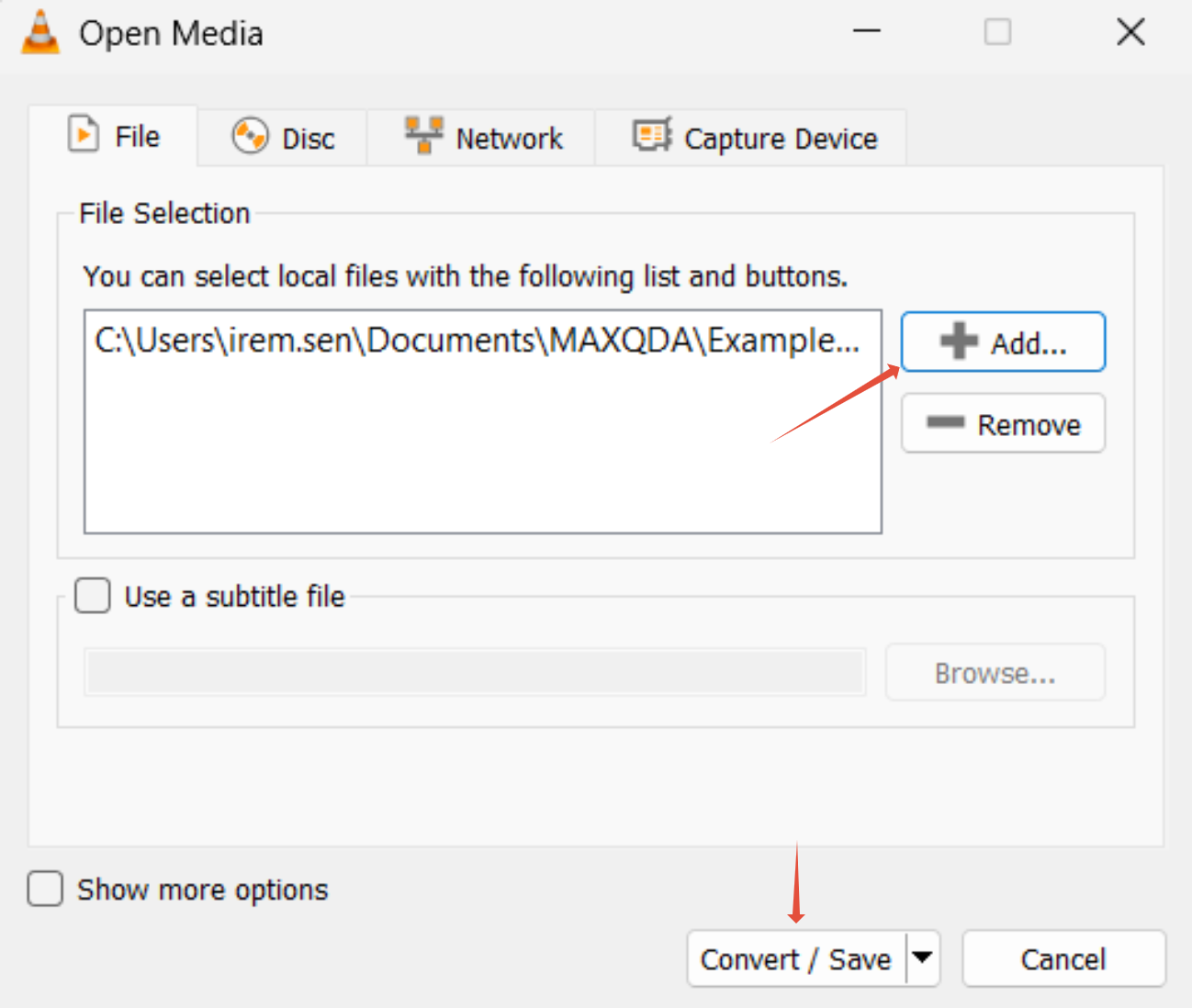
Select "Media" > "Convert/Save"
Add the relevant file and click the arrow next to Convert/Save at the bottom right:
Then click "Convert" and the small wrench icon:

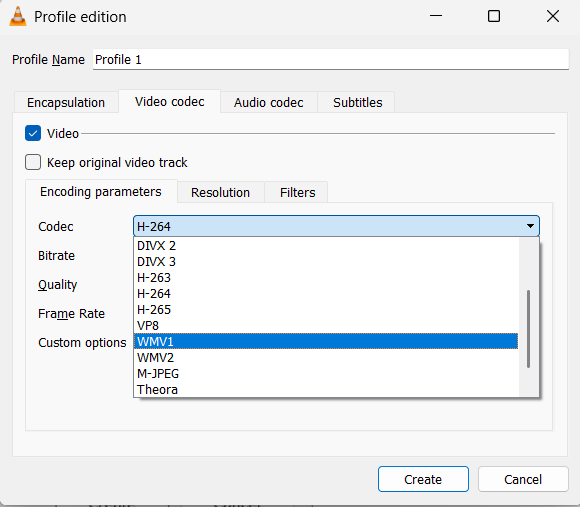
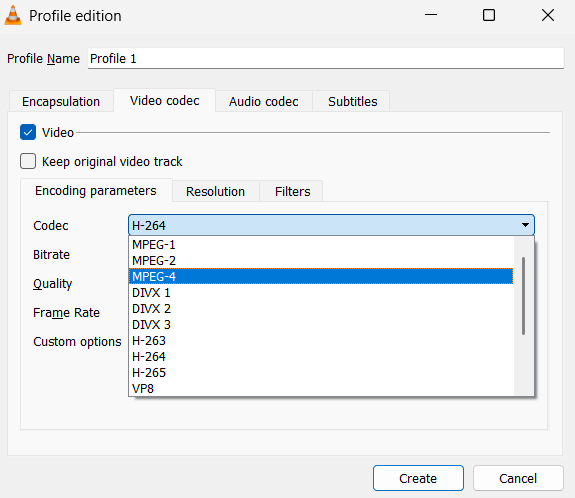
Under "Video codec" you can select a different codec:
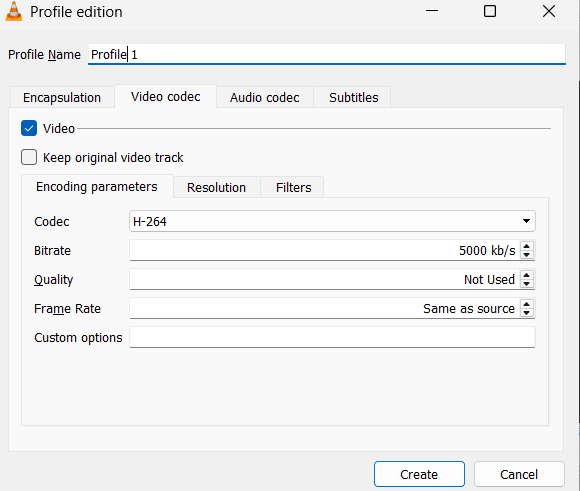
The compatible video codecs are H-264, WMV1, WMV2, and the MPEG codecs.
- Press "Save" to save the changes.
- Now open the modified file in the media player in MAXQDA.
Please note: The bitrate of the video is not important for MAXQDA. The higher the bitrate, the better the quality of the video, but also the larger the file.
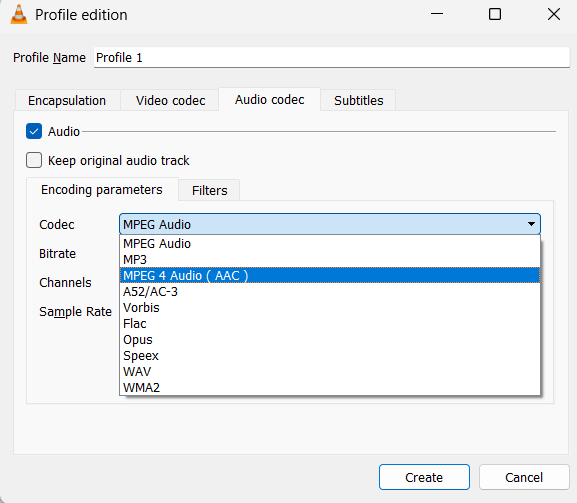
Audio codec:
Please proceed the same way for the audio codec:
The audio codecs MP3 and AAC are compatible with MAXQDA:
Don't forget to save, and then the file can be opened in MAXQDA. :)
You can find further information on this topic here: Unable to play media files : MAXQDA Support
Was this article helpful?
That’s Great!
Thank you for your feedback
Sorry! We couldn't be helpful
Thank you for your feedback
Feedback sent
We appreciate your effort and will try to fix the article